Kentucky E-ZPass login gives you direct access to the RiverLink portal, the official system that manages tolls on bridges connecting Kentucky and Southern Indiana. This system handles accounts, payments, transponder data, and toll history for drivers who use the Louisville-area bridges. Whether you need to check your balance, update a vehicle, or pay a toll, the RiverLink login page is your main entry point. This resource covers every step of the login process, account setup, password recovery, payment tools, and customer support options. All facts below come from the official RiverLink website, current tolling rules, and verified public records from the Kentucky Public Transportation Infrastructure Authority and the Indiana Finance Authority.

RiverLink is the tolling brand for the Ohio River Bridges Project. It uses E-ZPass technology, which works in more than 19 states. Kentucky drivers can use a Kentucky-issued transponder or a compatible out-of-state E-ZPass. The system supports prepaid accounts, pay-by-plate invoicing, and registered video accounts. Each option has its own login path and rules. The next sections explain how the system works, how to log in, and how to solve common account issues.
What Is Kentucky E-ZPass and How RiverLink Works
Kentucky E-ZPass is the local name for the electronic toll system used on three Ohio River bridges near Louisville. The system started in late 2016. It covers the Lincoln Bridge, the Kennedy Bridge, and the Lewis and Clark Bridge. The joint project includes the states of Kentucky and Indiana. Both states share toll revenue based on each driver’s residence. RiverLink is the customer-facing brand for this system. The name appears on the website, mobile app, statement letters, and customer service centers. When people say “E-ZPass Kentucky login” or “RiverLink login,” they refer to the same account system. The portal at riverlink.com lets you manage your account, pay tolls, and view statements.
The system uses three main account types:
- Prepaid Account: You add money to a balance. Tolls deduct as you drive. This option gives the lowest toll rates.
- Pay by Plate: You register your license plate. A photo reads your plate when you cross. You get an invoice by mail.
- Registered Video Account: A camera reads your plate and charges a credit card on file. Rates are higher than prepaid.
Each type uses the same login portal, but the features you see depend on your account type. Prepaid accounts show a balance. Pay-by-plate accounts show unpaid invoices. Video accounts show recent plate reads.
How the RiverLink Login Portal Works
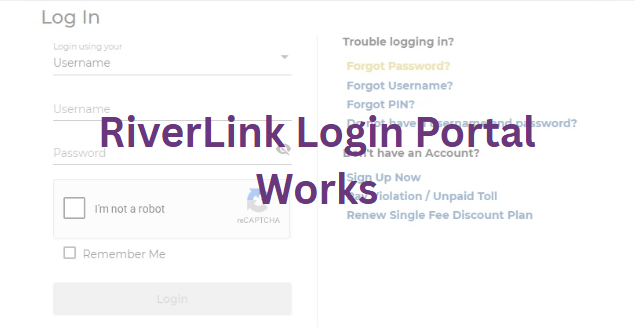
The RiverLink login portal is a secure website where you sign in with a username and password. Once signed in, you reach your account dashboard. The dashboard shows your balance, vehicles, payment methods, and recent tolls. You can also update personal details, download statements, and contact support. The portal runs on a hosted platform managed by ETCC (Electronic Transaction Consultants Corporation). This company builds tolling software for many U.S. toll roads. The login form uses standard web encryption. Your password is stored in scrambled form on secure servers. RiverLink staff cannot see your password in plain text.
Step to Kentucky EZPass Login Process
Follow these steps to sign in to your RiverLink account. Each step takes only a few seconds. The whole process works on a desktop browser, mobile browser, or the RiverLink app.
Step 1: Open the Official RiverLink Website
Type https://www.riverlink.com/ into your browser address bar. Always type the address yourself. Do not click links from emails or text messages. Fake login pages exist and try to steal usernames and passwords. Bookmark the official site once you reach it. This step keeps you safe from phishing scams.
Step 2: Find the Sign In Button
Look at the top-right corner of the homepage. You will see a button labeled “Sign In” or “Login.” Click this button. The site then loads the secure login form. Some pages may show “Open/Manage Account” instead. Both lead to the same form.
Step 3: Enter Your Username and Password
Type your username in the first box. Type your password in the second box. Passwords are case-sensitive. This means capital letters and small letters matter. Caps Lock must be off unless you set it that way. If you do not remember your credentials, use the reset links on the form. More on that later.
Step 4: Submit and Reach Your Dashboard
Click the “Sign In” button below the form. If your details match, the portal opens your account dashboard. You can now check your balance, view tolls, update your vehicle list, or change your payment method. If login fails, the page will show an error. Most errors come from wrong passwords, locked accounts, or old browser data.
What You Need Before Logging In
Before you sign in, gather a few things. These items make the process smooth and fast.
- A registered username and password: You set these up when you opened your account. They came in a welcome email.
- A working internet connection: A weak signal can cause login timeouts. Use Wi-Fi or a strong mobile data signal.
- An updated web browser: The portal works best on the latest versions of Google Chrome, Mozilla Firefox, Apple Safari, or Microsoft Edge.
- Your account number (optional): You may need this for password recovery. It is on your monthly statement.
Have these items ready before you start. They cut login time and reduce errors.
Creating a New Kentucky EZPass Account
New users must register before logging in. The sign-up process takes about five minutes. You will need a credit card, debit card, or bank account for payment. You also need your license plate number and vehicle details.
How to Register a New RiverLink Account
Go to riverlink.com and click “Sign Up” or “Open an Account.” Choose your account type. Prepaid accounts cost $20 to start. This is your opening balance. Pay-by-plate accounts do not require an opening balance. Fill in your name, address, email, phone, and vehicle details. Add a payment method. Read the terms and conditions. Click submit. You will get a confirmation email with your username and a link to set your password.
Choosing the Right Account Type
Prepaid accounts work best for regular commuters. You save money on every toll. Pay-by-plate works for occasional drivers. Video accounts suit out-of-state visitors who do not have a transponder. Each type has a different toll rate. Prepaid rates are the lowest. Pay-by-plate rates are middle. Video rates are the highest. Pick the one that matches how often you cross the bridges.
Resetting Your RiverLink Password
Forgotten passwords happen often. The RiverLink portal has a self-service reset tool. You do not need to call customer service for a basic reset. The tool sends a secure link to your email. The link works for a short time, usually 15 to 30 minutes.
How to Reset Your Password
Go to the RiverLink login page. Click the “Forgot Password?” link below the password box. Enter your username. Submit the form. Check your email inbox for a message from RiverLink. Open the message. Click the reset link. Type a new password. Save the new password. Try logging in again with the new password.
Password Tips for a Strong Account
Use a mix of capital letters, small letters, numbers, and symbols. Avoid using your name, birth year, or license plate. Do not reuse passwords from other websites. A password manager can store your password safely. Change your password every six months for best security.
Resetting a Forgotten Username
Forgotten usernames are common too. The recovery tool uses your email and account details. Here is how to get your username back.
On the login page, click “Forgot Username?” Enter the email linked to your account. You may also need to enter your account number or the last four digits of your Social Security Number. Submit the form. RiverLink will email your username to you. Check your spam folder if you do not see the message in five minutes.
If the recovery tool does not work, call RiverLink customer service. They will verify your identity using your name, address, and license plate. Once verified, they will tell you your username over the phone.
Unlocking a Locked RiverLink Account
Accounts lock after too many wrong password attempts. This is a security measure. It stops hackers from guessing your password. A lock usually clears on its own after 15 to 30 minutes. You can also unlock it faster with a password reset.
How to Unlock Your Account
Wait 15 minutes. Then try logging in with the correct password. If you are not sure of your password, use the “Forgot Password?” link to reset it. The reset creates a new password. The new password also unlocks the account. Do not keep trying the wrong password. More wrong attempts will extend the lockout time.
Managing Your RiverLink Account Dashboard
Your dashboard is the control center for your account. It opens right after login. The dashboard has several sections. Each one handles a different task.
Account Summary
The top of the dashboard shows your account summary. It lists your current balance, account type, and account number. It also shows any unpaid tolls or fees. The summary updates each time you load the page. Check this section first to see your account status.
Vehicle List
The vehicle section shows every car, truck, or motorcycle linked to your account. You can add a new vehicle, remove a vehicle, or update license plate numbers. Each vehicle links to a transponder. You can also see if a transponder is active or missing.
Payment Methods
This section shows the credit cards, debit cards, or bank accounts on file. You can add a new card, remove an old card, or set a default card. A default card is the one RiverLink charges when your balance runs low. Keep your card details current to avoid failed payments.
Transaction History
This section lists every toll you paid. Each entry shows the date, bridge, time, and amount. You can filter the list by date range. You can also download the list as a PDF or CSV file. This feature helps with tax records and expense reports.
Adding Vehicles to Your RiverLink Account
You can add up to 10 vehicles per account. Each vehicle needs a license plate number, state, make, model, and year. You can also add a transponder number for each vehicle. The transponder is the small device that mounts on your windshield.
Steps to Add a New Vehicle
Log in to your account. Click “Vehicles” in the dashboard menu. Click “Add Vehicle.” Type the license plate number. Select the state. Add the make, model, and year. Save the changes. The new vehicle shows up in your list right away. If you have a transponder, add the transponder number too. This links the tag to the vehicle.
Updating Payment Methods on RiverLink
Your payment method must stay current. An expired card can cause failed payments. Failed payments can lead to violations and fees. Update your card before it expires.
How to Add or Replace a Card
Log in. Go to “Payment Methods.” Click “Add New Card.” Type the card number, name on card, expiration date, and security code. Save the new card. To replace an old card, click “Edit” next to the old card. Update the details. Save the changes. To remove a card, click “Delete.” A default card is required. If you remove the only card, add a new one first.
Setting Up Auto-Replenishment on RiverLink
Auto-replenishment is a setting that adds money to your balance automatically. When your balance drops below a set level, RiverLink charges your card. This keeps your balance positive. A positive balance gives you the lowest toll rates.
How Auto-Replenishment Works
You pick a low-balance threshold. The minimum is $10. The maximum is $50. You also pick a refill amount. The minimum refill is $20. The maximum is $200. When your balance hits the threshold, RiverLink charges your card the refill amount. The new balance shows up in your account within minutes.
Turning Auto-Replenishment On or Off
Log in. Go to “Payment Methods” or “Account Settings.” Find the auto-replenishment section. Toggle the switch to “On” or “Off.” Save the setting. If you turn it off, watch your balance manually. A zero balance means higher toll rates.
Checking Your RiverLink Account Balance
Your balance is in the account summary section. The number updates every time you log in. You can also check the balance without logging in by calling the automated phone line. The line asks for your account number and zip code, then states your balance. Low balance warnings are sent by email. The warning goes out when your balance drops below half of your refill threshold. Add money to your account right away if you get a warning. A low balance means your toll rate will go up at the next crossing.
Reviewing Toll History and Statements
Toll history shows every toll you paid. It includes the bridge name, date, time, and toll amount. The list covers the past 90 days by default. You can change the date range to view older records.
Downloading a Statement
Log in. Go to “Transaction History.” Pick a start date and end date. Click “Download.” Choose PDF or CSV format. Save the file to your computer. PDF files are good for printing. CSV files work in spreadsheet programs like Microsoft Excel or Google Sheets.
RiverLink Mobile App Features
The RiverLink mobile app is free for iPhone and Android. The app lets you log in, check your balance, view tolls, and update your account from your phone. The app also sends push notifications for low balance, new tolls, and payment confirmations.
How to Download the App
Open the Apple App Store or Google Play Store. Search for “RiverLink.” Look for the official app by the Joint Board of the Ohio River Bridges Project. Tap “Install.” Open the app. Log in with the same username and password you use on the website. The app remembers your login on your personal device.
App Features at a Glance
- Balance check: See your current balance in seconds.
- Toll alerts: Get notified after each toll.
- Payment updates: Know when auto-replenishment adds money.
- Vehicle management: Add or remove vehicles from your phone.
- Customer support: Call or message support from the app.
Kentucky Toll Rates and Bridge Information
RiverLink tolls depend on your account type, vehicle size, and bridge. The three tolled bridges are:
- Lincoln Bridge: Carries northbound I-65 traffic from Kentucky to Indiana.
- Kennedy Bridge: Carries southbound I-65 traffic from Indiana to Kentucky.
- Lewis and Clark Bridge: Connects eastern Jefferson County, Kentucky, to southern Indiana on the SR-265/KY-841 corridor.
The base toll for a 2-axle passenger vehicle on a prepaid account is $2.17. The pay-by-plate rate is $3.84. The registered video rate is $5.36. Rates for trucks and vehicles with trailers are higher. The rates depend on the number of axles. The full rate chart is on the RiverLink website.
Louisville Southern Indiana Bridge Tolls
Two of the three bridges sit in downtown Louisville. The Lincoln and Kennedy bridges carry I-65 traffic across the Ohio River. Together they handle more than 100,000 crossings each day. The Lewis and Clark Bridge is about eight miles east. It carries traffic on the SR-265/KY-841 outer beltway. All three bridges use the same E-ZPass technology and the same account system. Toll gantries hang above the road. They use cameras and radio sensors. As you drive under, the gantry reads your transponder or your license plate. The system then charges your account. There are no toll booths. You do not need to slow down. The posted speed limit applies at all times.
Paying Tolls by Plate (Pay by Plate)
Pay by Plate is an option for drivers without a transponder. You register your license plate on riverlink.com. When you cross a bridge, a camera reads your plate. The system matches the plate to your account. RiverLink then charges the card on file or mails an invoice.
How to Sign Up for Pay by Plate
Go to riverlink.com. Click “Open an Account.” Choose “Pay by Plate.” Enter your name, address, email, and phone. Add your license plate number, state, and vehicle details. Add a payment method. Submit the form. You will get a confirmation email. Your account is ready to use right away. Drive through the toll gantries at normal speed. The system will read your plate and charge the right toll.
Handling EZPass Kentucky Violations
A violation happens when you cross a toll bridge without a working transponder, a registered plate, or a positive account balance. A camera takes a picture of your plate. RiverLink then mails a toll invoice to the registered owner of the vehicle. The invoice includes the toll amount plus a $5 admin fee for the first notice. Later notices have higher fees.
How to Pay a Violation
Open the invoice. Look for the violation number. Go to riverlink.com. Click “Pay a Violation.” Type the violation number and license plate. Pay with a credit card or debit card. The violation clears within 24 hours. You can also pay by phone or by mail. Mail payments take longer to process.
How to Avoid Violations
- Keep your transponder mounted and working.
- Make sure your account has a positive balance.
- Update your license plate on file if you buy a new car.
- Pay invoices on time to avoid extra fees.
Disputing a Toll Charge on RiverLink
You can dispute any toll charge you think is wrong. disputes include wrong vehicle, wrong plate, or double charge. RiverLink reviews each dispute. The review takes 7 to 14 business days.
How to File a Dispute
Log in to your account. Go to “Transaction History.” Find the charge you want to dispute. Click “Dispute.” Pick a reason from the list. Add a short note with more details. Submit the form. RiverLink will email you a decision. If the dispute is approved, the charge is removed or refunded. If the dispute is denied, you get a reason in the email.
Escalating a Dispute
If your dispute is denied and you still disagree, you can appeal. Send a written appeal to the RiverLink Customer Service Center. Include your account number, the toll in question, and a clear reason for the appeal. The Joint Board of the Ohio River Bridges Project reviews all appeals. The board’s decision is final.
RiverLink Security Best Practices
Account security matters. A stolen login can lead to lost money and fake charges. Follow these steps to keep your account safe.
Use a Strong Password
A strong password is at least 12 characters long. Use a mix of letters, numbers, and symbols. Do not use your name, birthday, or license plate. Change your password every six months. A password manager can help you keep track of strong passwords.
Watch for Phishing Scams
Phishing is a scam where fake emails or texts pretend to be from RiverLink. They ask for your username, password, or card number. Real RiverLink emails never ask for your password. If you get a message asking for login details, delete it. Always log in by typing the address yourself.
Log Out When Done
Always click “Log Out” when you finish your session. This is most important on shared or public computers. Logging out ends your session. No one else can use your login after that.
Check Your Account Often
Log in once a week. Review your balance and your recent tolls. Look for any charges you do not recognize. The faster you spot a problem, the faster you can fix it. You can also sign up for email or text alerts in your account settings.
Login Issues and Fixes
Login errors are common. Most have simple fixes. Here are the top login issues and how to solve them.
Wrong Password or Username
This is the most common error. Check for capital letters and small letters. Make sure Caps Lock is off. If you do not remember your details, use the “Forgot Password?” or “Forgot Username?” links.
Account Locked
Too many wrong attempts will lock your account. Wait 15 to 30 minutes. Then try again. Or use the password reset tool. A reset also unlocks the account.
Page Will Not Load
If the login page will not load, the issue is often your browser. Clear your cache and cookies. Try a different browser. Make sure your internet connection is stable. Restart your device if the issue continues.
Session Expired
For security, sessions end after a set time. If your session expires, log in again. Save your work before the session ends.
Browser Compatibility and Cache Clearing
The RiverLink portal works on all major browsers. Old browsers may cause errors. Update your browser to the latest version. Then clear your cache and cookies.
How to Clear Cache in Chrome
Click the three dots in the top-right corner. Click “Settings.” Click “Privacy and Security.” Click “Clear Browsing Data.” Pick “Cached Images and Files” and “Cookies and Other Site Data.” Click “Clear Data.” Close the browser. Reopen it. Try logging in again.
How to Clear Cache in Safari
Click “Safari” in the top menu. Click “Settings.” Click the “Privacy” tab. Click “Manage Website Data.” Click “Remove All.” Confirm the action. Restart Safari. Try logging in.
How to Clear Cache in Firefox
Click the three lines in the top-right corner. Click “Settings.” Click “Privacy and Security.” Scroll to “Cookies and Site Data.” Click “Clear Data.” Check both boxes. Click “Clear.” Restart Firefox. Try logging in.
How to Clear Cache in Edge
Click the three dots in the top-right corner. Click “Settings.” Click “Privacy, Search, and Services.” Click “Choose What to Clear.” Pick “Cached Images and Files” and “Cookies and Other Site Data.” Click “Clear Now.” Restart Edge. Try logging in.
Contacting RiverLink Customer Service
Customer service can help with login, payments, accounts, and disputes. The main phone line is 1-855-RIV-LINK (1-855-748-5465). The line is open Monday through Friday from 7:00 AM to 7:00 PM Eastern Time. On Saturday, the line is open from 8:00 AM to 2:00 PM Eastern Time. The line is closed on Sundays and major holidays. You can also email customer service. The email address is customerservice@riverlink.com. Emails get a response within 1 to 2 business days. For faster help, use the phone line or live chat on the website.
Live Chat on RiverLink
Go to riverlink.com. Scroll to the bottom of the page. Click “Contact Us.” Click “Live Chat.” A chat window opens. Type your question. A support agent joins the chat in a few minutes. Live chat is open during the same hours as the phone line.
RiverLink Office Locations and Hours
RiverLink has a customer service center in Jeffersonville, Indiana. The center sits near the bridges. You can visit in person for account help, payments, and transponder issues.
Office Address:
RiverLink Customer Service Center
300 North Shore Drive
Jeffersonville, IN 47130
Office Hours:
- Monday to Friday: 7:00 AM to 7:00 PM Eastern Time
- Saturday: 8:00 AM to 2:00 PM Eastern Time
- Sunday: Closed
RiverLink System Status and Outage Updates
Sometimes the RiverLink system has planned outages. These outages are for maintenance. They often happen late at night. The system may be down for 15 minutes to 2 hours. Planned outages are posted on the RiverLink homepage. They are also sent by email to all account holders. Unplanned outages can also happen. These are rare. They can come from power loss, network issues, or hardware failure. During an unplanned outage, the toll gantries still take pictures. The system catches up once the outage ends. No tolls are lost. You may see a small delay in the charge showing up in your account.
Kentucky Toll Authority Contact Details
The Kentucky Public Transportation Infrastructure Authority (KPTIA) oversees RiverLink on the Kentucky side. The agency can answer questions about toll policy, rates, and agreements.
KPTIA Phone: 1-502-573-2384
KPTIA Address: 200 Mero Street, Frankfort, KY 40622
KPTIA Website: transportation.ky.gov
The Indiana Finance Authority handles the same role on the Indiana side. The agency oversees the toll revenue split and Indiana-side enforcement.
Indiana Finance Authority Phone: 1-317-232-5610
Indiana Finance Authority Address: 100 North Senate Avenue, Indianapolis, IN 46204
Indiana Finance Authority Website: in.gov/ifa
Official Contact Information
Website: https://www.riverlink.com
Phone: 1-855-RIV-LINK (1-855-748-5465)
Email: customerservice@riverlink.com
Customer Service Center: 300 North Shore Drive, Jeffersonville, IN 47130
Phone Hours: Monday to Friday 7:00 AM to 7:00 PM Eastern Time, Saturday 8:00 AM to 2:00 PM Eastern Time
Office Hours: Monday to Friday 7:00 AM to 7:00 PM Eastern Time, Saturday 8:00 AM to 2:00 PM Eastern Time
Frequently Asked Questions
Here are the most common questions drivers ask about the Kentucky EZPass login and RiverLink accounts. Each answer gives clear, fact-based details to help you manage your account with confidence.
Can I use my out-of-state EZPass on Kentucky bridges?
Yes. E-ZPass is accepted in more than 19 states. If you have an E-ZPass from another state, it works on the Lincoln, Kennedy, and Lewis and Clark bridges. Your toll will be charged to your home E-ZPass account. The toll rate is the same as the Kentucky prepaid rate. You do not need a separate Kentucky account if you already have an E-ZPass.
What happens if I forget to log in and check my balance for months?
Your account will still work. Tolls will still be charged. Auto-replenishment will still add money. However, if your card expires or your auto-replenishment fails, your balance can go negative. A negative balance means higher toll rates. It can also lead to violations. Log in at least once a month to check your account.
Can I have more than one driver use the same RiverLink account?
Yes. Multiple vehicles can be on one account. Family members or co-workers can share the account. Each vehicle needs its own transponder. The tolls all come from the same balance. You can also set up sub-accounts for separate billing.
How long does it take to get a transponder in the mail?
It takes 5 to 7 business days. The transponder ships from the RiverLink office in Jeffersonville, Indiana. You will get a tracking number by email. The transponder comes with mounting instructions. You can also pick one up in person at the customer service center.
Can I transfer my RiverLink balance to another person?
No. RiverLink balances are non-transferable. The balance stays with the account holder. If you close your account, the system refunds the balance to the card on file. The refund takes 7 to 10 business days.
What is the difference between a transponder and pay by plate?
A transponder is a small device that mounts on your windshield. It sends a radio signal to the toll gantry. The signal gives you the lowest toll rate. Pay by plate uses a camera to read your license plate. It costs more than a transponder. Transponders are best for daily commuters. Pay by plate is best for occasional drivers.
Can I close my RiverLink account at any time?
Yes. You can close your account by calling customer service or by logging in and going to “Account Settings.” You must return the transponder, if you have one. Once the account is closed, the system refunds any remaining balance to your card on file. The refund takes 7 to 10 business days.